Golf Simulator Maintenance: Keep Your Gear in Shape
A practical golf simulator maintenance routine: impact screen tension and care, mat rotation, projector filter cleaning, cable checks, and software and firmware updates.
A golf simulator is a stack of precision gear that lasts for years with a little routine care. The five areas that need attention are your impact screen, your hitting mat, the projector, the cables, and your software and firmware. None of it is hard, and a few minutes per session plus a short monthly check prevents the expensive failures and frustrating glitches that cut a setup's life short. Here is a clear, practical maintenance routine you can follow.
Maintenance shopping list
The consumables and spares that keep a simulator running: a fresh mat, a backup HDMI cable, surge protection, and a safe screen cleaner.
-
 Replacement mat GoSports Elite 5'x4' Golf Hitting Mat
A durable 15mm turf mat on a firm rubber base, the replacement to swap in when your old mat goes flat, thin, or starts bouncing the club.
-
 Spare HDMI Highwings 25 ft High-Speed 4K HDMI Cable
A braided 25 foot cable to keep on hand, so you can rule out a tired HDMI run the moment video flickers or drops mid-session.
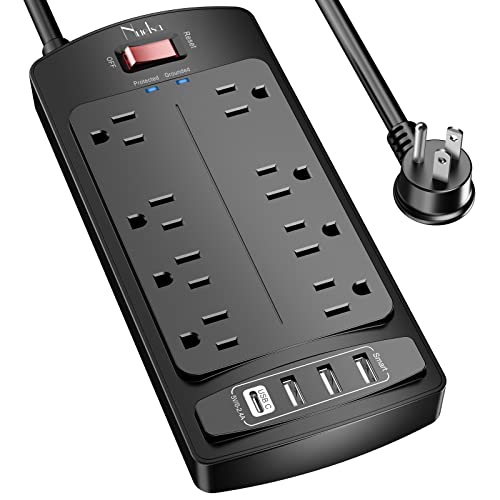
- Power protection Belkin Surge Protector Power Strip
A 2,500-joule surge protector that gives the projector, computer, and monitor one protected power point and a single safe shutoff.
-
 Cleaning kit Screen Mom Screen Cleaner Spray and Microfiber Cloth Kit
An alcohol-free, streak-free spray with a plush microfiber cloth for wiping the projector lens and electronics without scratching delicate coatings.
Prices update on Amazon and change often. As an Amazon Associate we earn from qualifying purchases at no extra cost to you.
A simple maintenance cadence
The easiest way to stay on top of upkeep is to split tasks by how often they matter. Quick checks happen every session, light cleaning and verification happen monthly, and deeper care happens every few months. This table sums up the rhythm.
| Frequency | Tasks |
|---|---|
| Every session | Check screen tension, mat condition, cable connections |
| Monthly | Clean screen and mat, check projector filter, verify calibration |
| Every few months | Rotate mat, deep-clean filter, inspect cables closely |
| As released | Apply firmware and software updates during downtime |
Impact screen: tension and cleaning
Your impact screen takes the hardest abuse in the room, so tension is the first thing to watch. A properly taut screen absorbs impact cleanly and projects a crisp image, while a loose screen flaps on every shot, wears at the seams, and blurs the picture. Re-tension it whenever it starts to sag. Clean the screen gently with a soft brush or a vacuum on a low setting to lift ball marks and dust, and skip harsh chemicals that can degrade the fibers. Inspect periodically for thinning spots in the main striking area, and use clean, undamaged balls, since nicked balls accelerate wear. If your screen is past its prime, our roundup of the best golf impact screens covers durable replacements and how they are built to last.
Hitting mat: wear and rotation
A hitting mat wears in a narrow strip where the club contacts the ground, and a worn strip changes how the club interacts with the surface. That can fake out your data and, worse, cause harsh fat-shot bounce that stresses your wrists. Rotate the mat or its hitting strip whenever wear concentrates in one place, often every few months for regular hitters, so the surface wears evenly. Replace the mat or strip when the turf is matted flat, thin, or no longer cushions impact. Treat your mat as a consumable, and your joints and your numbers both stay healthier. Compare durable options in our guide to the best golf hitting mats when it is time for a new one.
Projector: filter and dust
Projectors run hot, and heat is their enemy. If your unit has a dust filter, a clog restricts airflow, raises internal temperature, and can force the projector to throttle brightness or shut down to protect itself. Check the filter every few months, and more often in a dusty garage, then clean or replace it as the manual directs. Keep the space around the projector open so air can move freely, and never block the intake or exhaust vents. Wipe the lens gently with a proper lens cloth to keep the image sharp, and avoid touching the glass with bare fingers. A little dust management noticeably extends a projector's life and keeps the picture bright.
Cables: the quiet troublemakers
Many problems that look like hardware or software faults are really a tired cable. Intermittent video dropouts, flickering, or a launch monitor that loses connection often trace back to a kinked HDMI cable or a loose USB connector. Periodically inspect your HDMI, power, and USB cables for damage, especially at the connector ends, and reseat anything that feels loose. Route and secure cables so they cannot be stepped on, swung into, or yanked, and keep a spare HDMI and USB cable on hand. Good cable hygiene eliminates a whole category of mid-session frustration before it starts.
Software and firmware updates
Keeping your launch monitor firmware and simulator software current improves both accuracy and stability. Firmware updates fix tracking bugs and sometimes sharpen accuracy, while software updates add courses and patch crashes. The key habit is timing: apply updates during downtime rather than right before you want to play, and re-verify your settings afterward, because updates can reset altitude, ball model, or calibration values. If numbers seem off after an update, run through our calibration walkthrough to restore your settings and confirm accuracy.
The payoff
None of this takes long, and the payoff is real. A tensioned, clean screen, an evenly rotated mat, a dust-free projector, healthy cables, and up-to-date software add up to a simulator that performs like the day you built it, for years. Build the quick checks into your warmup, keep a monthly reminder, and replace consumables like mats and lamps before they fail. Maintained gear is cheaper, more accurate, and far more enjoyable than gear you only attend to once it breaks.
Golf Sim Build Planner
Room-fit worksheet, gear checklist, budget tracker, and wiring and lighting plan, in one printable planner that takes your build from idea to first swing.
Frequently Asked Questions
How do I keep my impact screen from wearing out?
Keep the screen properly tensioned, since a loose screen flaps on impact and wears faster, and clean it gently with a soft brush or vacuum on low to remove ball marks and dust. Avoid harsh chemicals that can break down the fibers. Rotate the ball striking area slightly if your screen allows, inspect for thinning spots, and use quality balls without nicks. A taut, clean screen lasts far longer than a slack, dirty one.
How often should I rotate or replace my hitting mat?
Rotate your hitting mat whenever you notice wear concentrating in one strip, often every few months for regular hitters, so the impact zone wears evenly across the surface. Replace the mat or its hitting strip when the turf is matted flat, thin, or causing fat-shot bounce that hurts your wrists. A worn mat changes how the club interacts with the ground, so swapping it keeps both your data and your joints healthy.
Do I need to clean my projector filter?
Yes, if your projector has a dust filter. A clogged filter restricts airflow, raises internal temperature, and can make the unit throttle brightness or shut down to protect itself. Check the filter every few months, more often in a dusty garage, and clean or replace it per the manual. Keep the area around the projector clear for airflow and wipe the lens gently with a proper lens cloth to keep the image sharp.
What cable checks should I do on a simulator?
Periodically inspect HDMI, power, and USB cables for kinks, loose connections, or wear at the ends, since intermittent video or tracking dropouts often trace back to a marginal cable. Reseat connectors that feel loose, secure cables so they are not stepped on or swung into, and keep spare HDMI and USB cables on hand. Good cable hygiene prevents many frustrating mid-session glitches that look like software or hardware faults.
How important are software and firmware updates?
They matter for both accuracy and stability. Launch monitor firmware updates fix tracking bugs and sometimes improve accuracy, while simulator software updates add courses and patch crashes. Update during downtime, not right before a session, and re-verify your settings afterward, since updates can reset altitude, ball model, or calibration values. Keeping firmware and software current is one of the easiest ways to keep a simulator running reliably.
What is a good routine maintenance schedule?
Do a quick visual check each session: screen tension, mat condition, and cable connections. Monthly, clean the screen and mat, check the projector filter, and verify calibration. Every few months, rotate the mat, deep-clean the filter, and inspect cables more closely. Apply firmware and software updates as they arrive during downtime. This simple cadence catches small problems before they become expensive ones and keeps your gear performing like new.
Building a golf sim?
Use our free calculators and guides to size the room, the gear, and the budget.
Build Planner: $39